Firebase
Create Firebase Application
The first thing we need to do, is create a new application in Firebase. To do this, make sure you ask Gaston or Martin under which account to do it, or have them create them for you.
To get started on your project, having a development environment is enough, but later on the project, you will need to have 3 separate application on Firebase:
dev: This is where the game is actively developed. Things might be broken from time to time in this environment, and that is fine.staging: This is where a release candidate is moved to for further testing. Once a version is published here, it should remain stable.prod: This is where the live version of your game lives. Be extremely careful when changing anything here.
Note
Keep in mind that everything that is described below needs to be done for every environment that we create.
If you do need to create the application, go to Firebase and click on Add project.
For the name, use the following naming convention [Game Name] [Environment] (Fists Of Furry Dev, Tridle Staging, etc).
For the platform, select Unity, and make sure you register both the iOS & Android app.
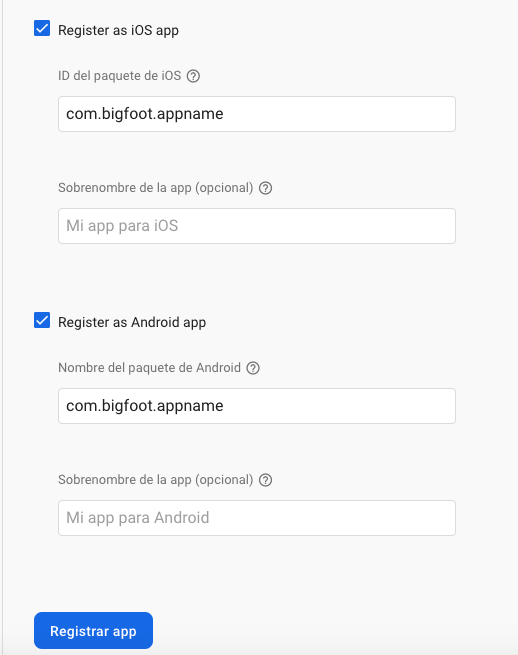
Follow the on screen instruction to download the configuration files google-services.json & GoogleService-Info.plist, but don’t add it to the Assets/ folder as instructed. Save it, because you will need it later on.
Configure Firebase Application
Authentication
On the left side panel, click on Authentication. Once there, select the Sign-in Method tab, and enable Anonymous.
Cloud Firestore
Now, we need a place to store all of the player’s information. On the left side panel, click on Cloud Firebase.
You will need a name for the collection, use users (case sensitive), and you are forced to create a new user (enter whatever you want, you can delete it after).
In the same page, select the tab Rules, and replace whats there with the following, and make sure you publish it.
rules_version = '2';
service cloud.firestore {
match /databases/{database}/documents {
    match /users/{userId} {
      allow read, update, delete: if request.auth.uid == userId;
      allow create: if request.auth.uid != null;
    }
  }
}
Now every user that logs into the game, will have an entry on this database.
Storage
Storage is the service we will use to store our json containing all of the title data remotely.
On the left side panel, click on Storage and enable it. After you’ve done so, go to rules, and paste the following:
rules_version = '2';
service firebase.storage {
  match /b/{bucket}/o {
    match /{allPaths=**} {
      allow read: if true;
    }
  }
}
Once you’ve finished the setup, copy and save the Storage URL, you will need it back in Unity.
Unity Configuration
Assign Firebase Backend
The first thing you need to do, is to tell our SDK that you want to use Firebase as a backend.
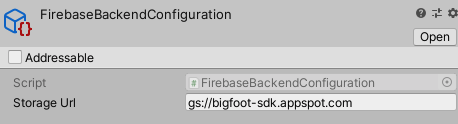
For this, you will need to create a Firebase Backend Configuration file (right click -> Create -> Configurations -> Backend -> Firebase) inside the folder Assets/Configurations.
Select the newly created configuration file, and paste in the Storage Url field, the url you have saved from the previous steps.
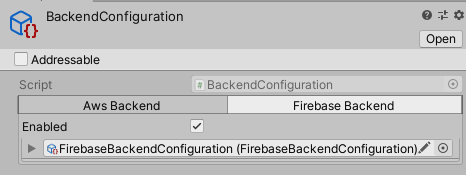
In the same folder, look for your Backend Configuration, go to the Firebase Backend tab and enable it. Drag and drop the previously created Firebase Backend Configuration file to the appropriate field.
Import Firebase Packages
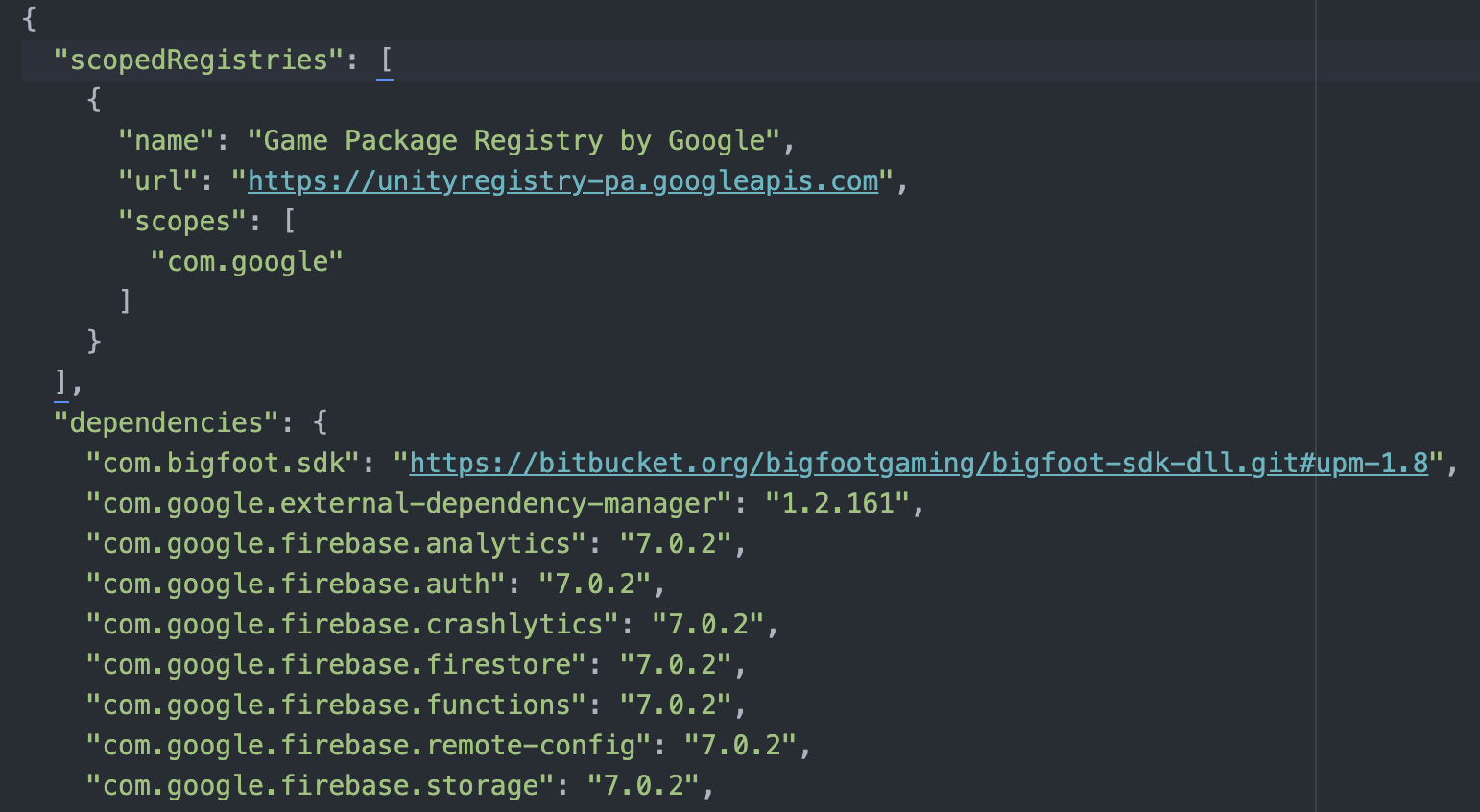
To import the Firebase packages into your project, open your Packages Manifest (ProjectLocation/Packages/manifest.json), and add the following at the top:
"scopedRegistries": [
  {
    "name": "Game Package Registry by Google",
    "url": "https://unityregistry-pa.googleapis.com",
    "scopes": [
      "com.google"
    ]
  }
],....
Now that you have the scoped registry, you can go into the Unity Package Manager, and download the latest version of the following packages:
Cloud Firestore for Firebase
Cloud Functions for Firebase
Cloud Storage for Firebase
Firebase Authentication
Firebase Remote Config
After you have all of this imported, your manifest file should look something like this: