Firebase Service
If you want to use Firebase Storage as a CDN for your Addressables, follow these steps.
Before doing anything else, we need to add a compiler flag FIREBASE_REMOTE_ADDRESSABLES.
To be able to use Firebase Storage, we need a workaround for Unity so can use the gs:// protocol, which is not currently supported.
In your project root, right click and select Create -> Addressables Assets -> Data Builders -> Firebase Build. This will create a new FireStorageBuildScript.asset in your project root.
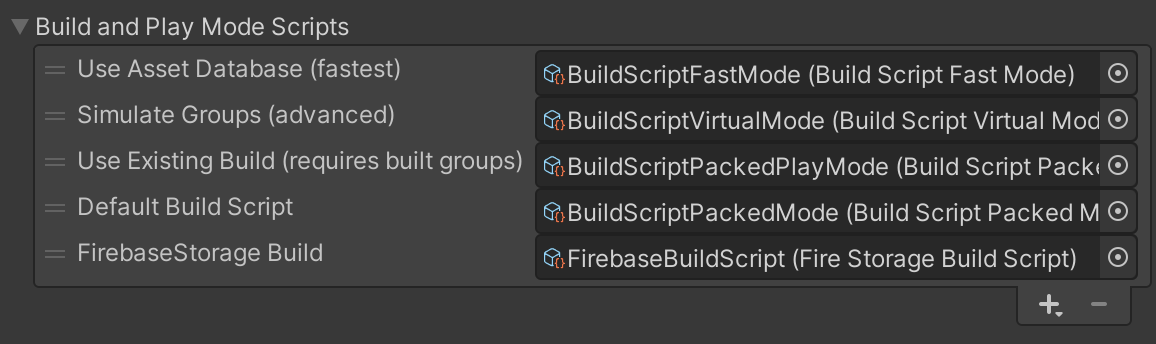
Now select AddressablesAssetSettings.asset (found in Assets/AddressablesAssetsData), scroll down in the inspector to the list of Build and Play Mode Scripts, and add the newly created FirebaseBuildScript.
Now, select all of the remote Addressable Groups you have (if you are following the tutorial from the previous page, it should be remote_assets), and under Content Packing and Loading, open up the Advanced Options, scroll down to the end, and set the Asset Bundle Provider to Firebase Assetbundle Provider.
Create Profiles
You will probably need different Addressable Profiles, to handle Development and Production enviroments. Go to Addressable Groups, click on Profile: Default, and then on Manage Profiles.
Create a new profile for each environment you need. In this case, let’s create Development.
The only field you need to change, is RemoteLoadPath. For this, you will need to change it to gs://{firebase_project_name}.appspot.com/Addressables/[BuildTarget].
Building the Addressables
Now that we have our Profiles created, lets go back to the Addressable Groups, select the Development Profile, and then Build -> New -> FirebaseStorage Build.
After a short while, we should see all of our Addressables built in the root folder of our project (outside of Assets/) in a folder called ServerData.
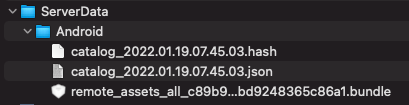
Take all of these created assets, go to the Firebase Storage of your Firebase project, create a new folder called Addressables, and inside of it, the build target (in this case, Android), and put in all of the files.
Also, make sure in the rules that you have allow read: if true; so anyone can read them.
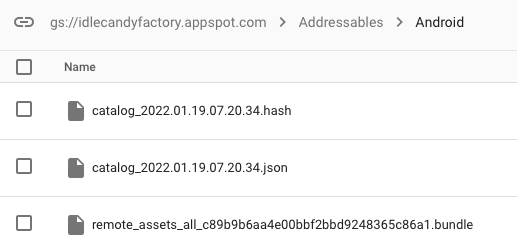
If you now create a new build of your game (Do not build Addressables again if prompted), you should be able to use those remote Addressables without issues.
Update existing build
Every time you create a build of your Addressables, a file called addressables_content_state.bin is created in Assets/AddressableAssetData/BuildTarget. This file is super important, and without it, you will not be able to update a previously released build. Because of that, make sure that the commited file in the repository, is the real last bin file with which the client was released.
Let’s supose you now made a change in Localization.csv, and you want to push it as a dlc for users, without the need of creating a new build.
Instead of building the Addressables for scratch, in the Addressables Group tab, select Build -> Update a Previous Build, and select the previously mentioned addressables_content_state.bin file. This will create a new catalog (with the same name, but different hash), and rebuild any bundle which contains changes.
Take all of these files, and upload them to the Firebase Storage (the catalog json and hash will be overwritten), and the next time your users fire up the game, they should be getting the new version.