Balance Sheet
For all of our games, we have a Balance Sheet in Google Docs, which will host all of the configurations needed for the game to function properly. Also, here is where our game designers will make all of the chances. This configuration can be stored server-side and/or locally in the Unity project.
Note
If you don’t know the url to your Balance Sheet, contact Gaston or Martin.
Structure
The first to know, is to understand how the Balance Sheet is structured. Im going to be using this Balance Sheet as an example.
Tab
RemoteConfigwill be a list of Key-Value pairs that will go straight to the server. It contains information realated to the minimum version of the app and which configuration file will be downloaded by any version of the app.Tab
TitleDatawill be a list of Key-Value pairs that will go as is into the configuration file. The keytitle_data_versionhas to in this tab and it is used to know if this is the file to be downloaded by the app.All other tabs that don’t start with a special character, will be a separate entry in the configuration file.
Each column within a tab, is going to be a property in the configuration. You need to select a type for that property so the parser knows how to handle the value (this needs to be in the second row, under the title)
Literal: The value is a literal value, and will be copied as it is.Json: The value needs to be a valid json.Sheet: This is the name of another tab. The parser will try to find a tab with that name, parse everything inside of it, and the output will be asigned as the value for this property.Ignore Title: It’s going to ignore the title of the property when parsingType: If the whole row of your sheet, is going to be an implementation of an Interface, you need to tell the Json Deserializer the type of the concrete instance.Ignore: This column will be ignored by the parser, and it won’t go into the configuration. This can be used if you need to use something as reference in the sheet, but don’t want it to get into the configuration.
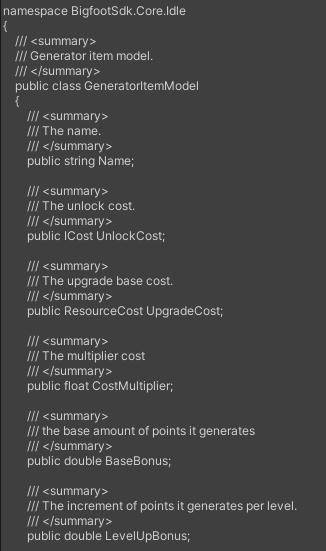
It’s important to also understand, that each of those columns, will need to match up with a concrete class in your project. For example, if we take the $generators tab for example, we can see that it matches with our GeneratorItemModel.cs class.

Update Remote Balance
Note
If you don’t have credentials for the Admin Tool or need access to a project, contact Gaston.
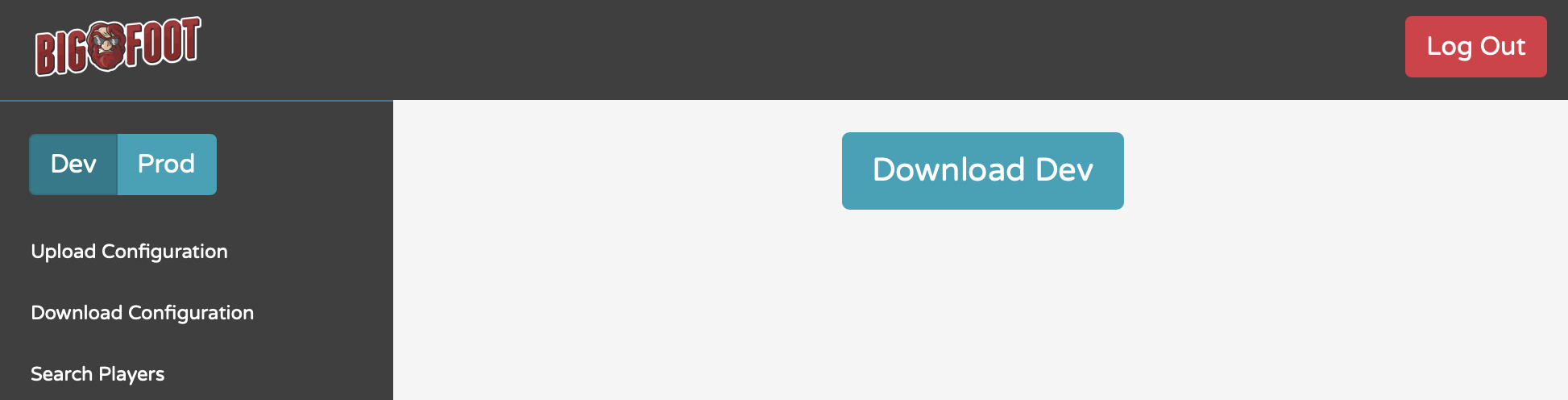
To upload a new version of your Balance Sheet, head over to the Bigfoot Admin Tool, select the project you are working on from the list, make sure you are pointing to the correct environment, go to Upload Configuration in the left menu, then click on Upload [EnvironmentName]

To add or update the local configuration file in your Unity project, go to Download Configuration in the left menu, then click on Download [EnvironmentName]